

Shut Down Vs. Sleep: Which Is Better For Your MacBook?
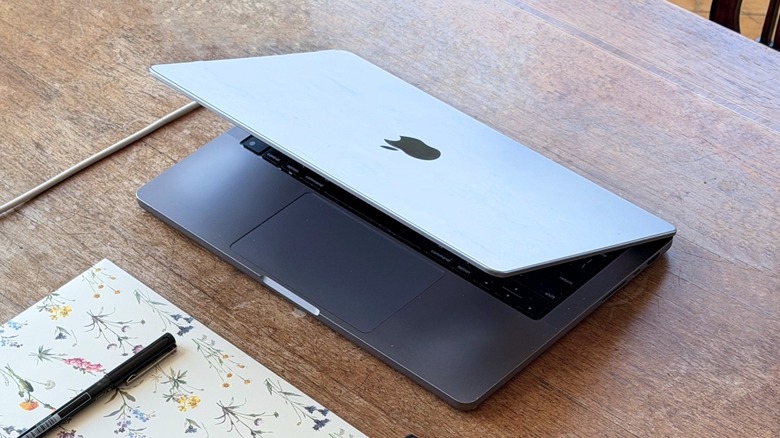
Modern computers are so power efficient and effective at handling tasks in the background that there's no need to shut down your MacBook when you stop using it. This is not just a tip for MacBook users, but also for Windows laptop owners. While it's been more than a decade since I last used a Windows laptop, I was surprised to discover from long-time Windows users that the same applies to these computers. If you're away from your MacBook for a few hours or even overnight, there's no need to shut down the computer.
For example, whenever I finish working, I just close my MacBook lid, so it's ready to go the next morning. By Friday afternoon, I actively shut down the computer because I'll stay the weekend away from the computer. It's not recommended for Intel MacBook owners to leave their Macs switched on for extended periods, as apps can clog up RAM and worsen performance. Fortunately, this is not an issue present on Apple silicon Macs. It is important to reboot your computer every now and again to install updates for new macOS features, and to give it a fresh start after a little break.
Putting your Mac into sleep mode is usually the best option
Have you ever questioned why the M4 Mac mini has the power button on the bottom, making it harder to keep switch it on and off? Senior Vice President of Marketing Greg Joswiak says he can't recall the last time he shut down his Mac, which indicates that they are made to keep running nonstop. Apple relocated the power button on the Mac mini because putting the computer in sleep mode is more than enough, and the same is true for MacBooks. These machines are very power-efficient; they don't consume a lot of battery in idle mode, and Apple silicon machines can instantly power on whenever you open the lid.
Turning your Mac off is also not an issue. But as these newer processors can boot instantly, the debate between shutting down and sleep mode is largely a matter of user preference. Shutting down your MacBook makes the system reboot everything, while just putting the laptop to sleep will let you catch up from where you last stopped. That said, there's no correct way to use your MacBook, you can do whatever is more convenient. Apple suggests that keeping your device on all the time is not an issue.
How to put your MacBook in sleep mode or shut it down
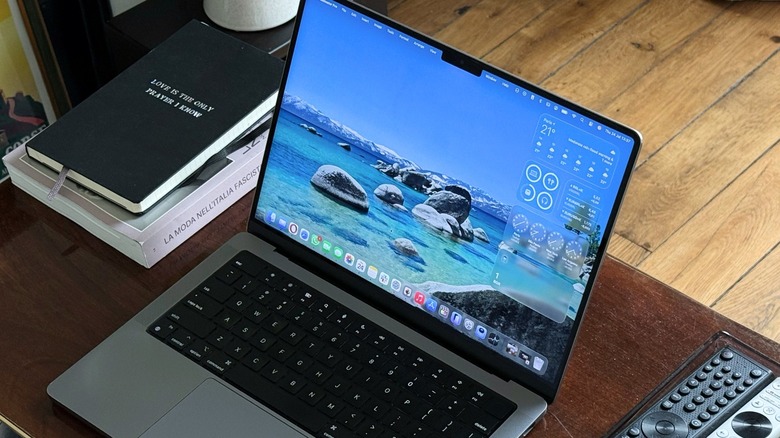
Putting your MacBook to sleep is as simple as closing the lid. Or if you leave your Mac a while without using it, the machine automatically enters sleep mode. Users can tweak the amount of time for the Mac to enter sleep mode by going through Settings > Lock Screen > Turn display off on battery when inactive, and select the period. Another option to instantly put your Mac into sleep is pressing the Apple logo on the left upper corner, and selecting Sleep.
To shut down your Mac, you need to click on the Apple logo in the upper left corner, and select Shut Down. MacBooks automatically turn on when you open the lid or if you press the Touch ID button in the upper-right corner of your keyboard. For desktop Macs, you need to press the power button, or the Touch ID button on an Apple keyboard.
If you keep your Mac into sleep mode overnight or less than a day, you can also instantly unlock it with your Apple Watch or Touch ID. If you shut your Mac down, then you need to type once again the password to activate the Touch ID button on your keyboard.